

Wonderful DiskMap
See where your disk space went. One folder, one clear map.
Version 1.1.0 · macOS 13+ · Apple silicon
Coming to the Mac App Store.
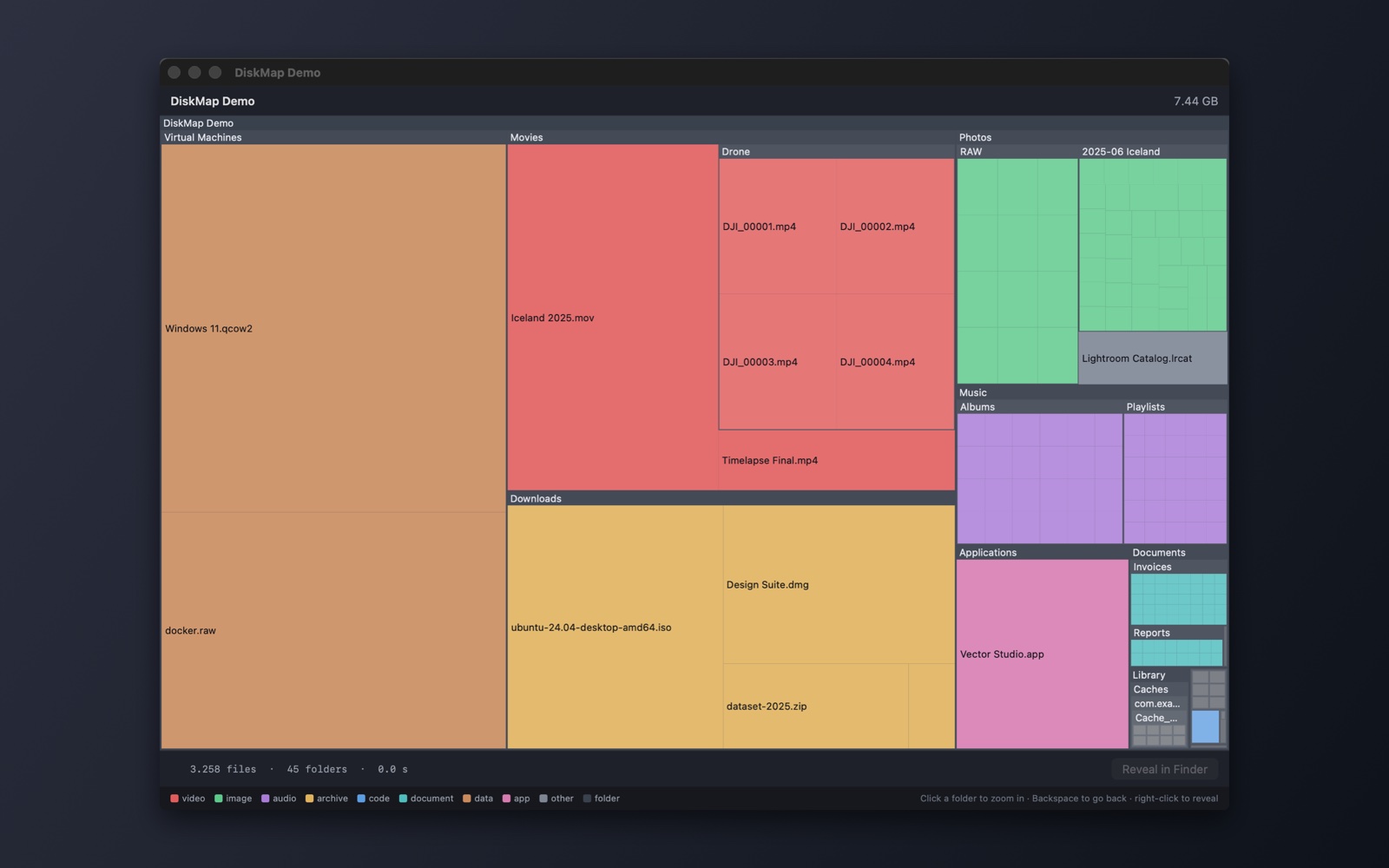
A native macOS app that draws your disk as a map. Every file becomes a rectangle sized by what it occupies, nested by folder, so a single 60 GB blob is impossible to miss.
It exists for the same reason our plugins do: we needed it, the honest version of it did not exist for free, so we wrote it.
Getting it
The app is being prepared for the Mac App Store. This page will carry the link as soon as it is live.
It is sold through the Mac App Store, so updates arrive the way every other app updates.
Why we built it
A treemap of a disk is a solved idea — GrandPerspective has done it on the Mac for twenty years, and there are good commercial tools. What we wanted was something small enough to read end to end, that we could run on our own machines and on client Macs without wondering what else it was doing.
Getting the number right
Four traps, each of which silently corrupts the answer:
Firmlinks. Since Catalina, macOS splits the boot disk into a read-only system volume and a data volume and stitches them back together with firmlinks. /Users and /System/Volumes/Data/Users are the same directory — same device, same inode — but a firmlink is neither a symlink nor a mount point, so nothing ordinary catches it. Walk the disk naively and every file is counted twice; our first version confidently reported 1.46 TB on a 1 TB disk. macOS lists the duplicates in /usr/share/firmlinks, and only those are skipped — .fseventsd, the Spotlight index and “Previous Content” exist only under /System/Volumes/Data and would vanish from the total if you excluded the whole thing.
Hardlinks are counted once. Count each name and a backup-style folder reports more data than the disk can physically hold.
Symlinks are counted but never followed — otherwise you double count, or walk in a circle.
Network volumes are skipped unless you ask for them. Walking a mounted NAS pulls every byte of metadata over the network and answers a different question than “what is filling my disk”.
Sizes are allocated blocks by default — what actually costs you space, and what du reports. The totals match du -sk byte for byte. App bundles, photo libraries and sparse bundles are drawn as a single tile, because nobody deletes one file out of a .photoslibrary.
What it does
- Click a folder to zoom in, the breadcrumb or Backspace to come back out.
- Hover anything for its full path, its size and its share of what you are looking at.
- Right-click to reveal it in the Finder — the map tells you where the space went, the Finder is where you do something about it.
- Colour by file type, so a folder that is all one colour tells you at a glance what kind of data ate the space.
- Optional: look inside app bundles, follow into other volumes, include network shares.
It asks which folder to scan when it opens rather than deciding for you. A full home folder here is 3.9 million files and takes about a minute.
Permissions
The app reads file metadata only — names, sizes, dates. It never opens a file's contents and never writes anything outside its own window.
But without Full Disk Access, ~/Library/Containers — usually one of the largest things in a home folder — Mail, Messages and Safari are simply invisible, and the total comes out too low without saying so. macOS never prompts for that permission, and it interrupts the scan with a separate prompt for every other protected folder it reaches. So the app checks on launch and says so once, instead of letting you find out twenty prompts later. After a scan the footer reports how many entries it could not read and offers a button that opens the right settings pane.
What it deliberately does not do
It does not delete anything. There is no “clean up” button, no cache cleaner, no recommendations — it shows you where the space is and hands you to the Finder. Deciding what may go is a job for someone who knows what the files are.
It also has no update checker, no telemetry, no analytics, no account and no network code of any kind.
Installing it
Installed from the Mac App Store like any other app, sandboxed and updated by the store.
Requires macOS 13 (Ventura) or newer on Apple silicon.
Questions about this tool? Get in touch.